Separate AP faults from upstream network, identity and client issues.
School network diagnostics · K–12
WiFi Access Point Troubleshooting for Schools
When one access point fails, an entire classroom can lose the tools it needs. Identify the real cause before replacing hardware or changing the network.
This practical guide explains how to separate power and uplink faults from wireless interference, authentication failures and capacity problems. It is designed for school technology teams and administrators evaluating professional support.
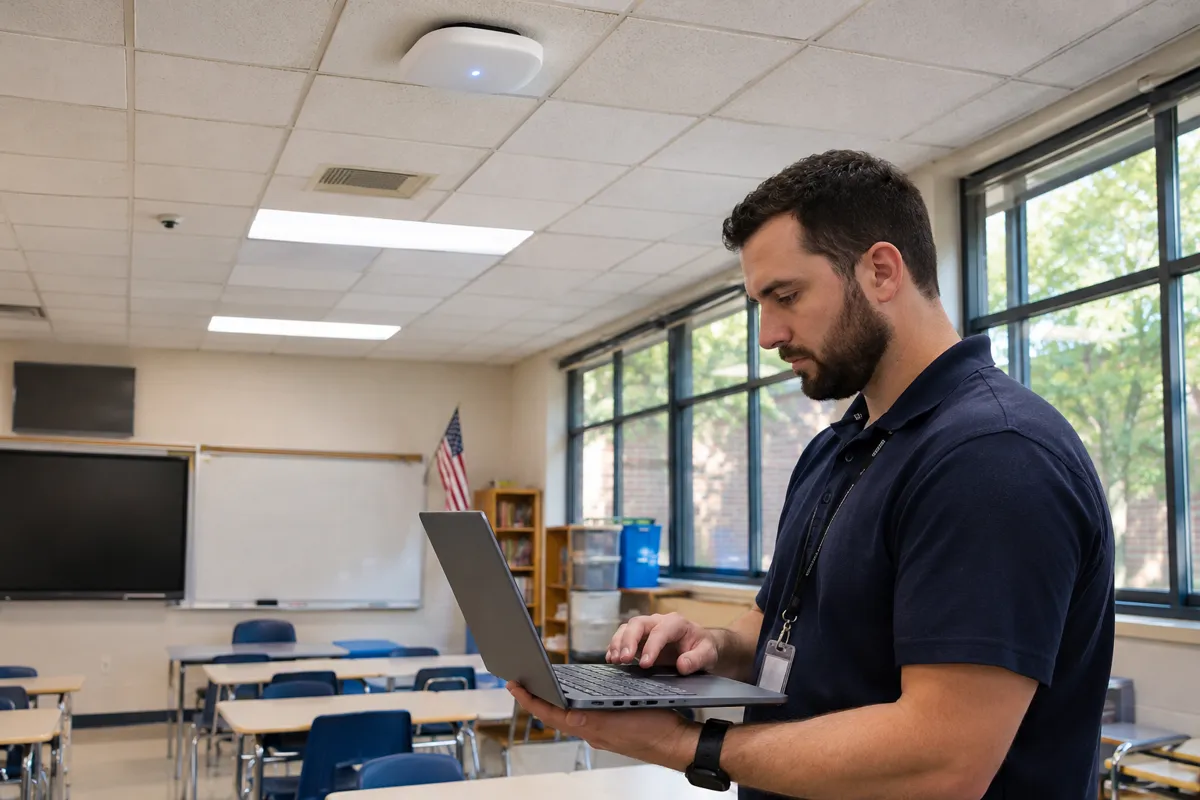
Start with the failure domain, not a reboot
A classroom outage can originate at the access point, PoE switch, cable, authentication service, VLAN or internet edge. Rebooting first can erase useful diagnostic evidence. These four principles keep the investigation focused.
Prioritize read-only checks and coordinate disruptive changes.
Review PoE, logs, retries, utilization and real device tests.
Document a successful retest and recurrence monitoring.
Access point symptoms and likely causes
| Observed symptom | Possible cause | Next diagnostic action |
|---|---|---|
| Access point offline | Power, PoE budget, switch port, cabling or controller adoption | Check switch PoE status, cable path and management heartbeat before restarting. |
| Clients see SSID but cannot join | Authentication, RADIUS, certificate, policy or client compatibility | Compare failure logs, test a known-good client and verify authentication path. |
| Wi-Fi connected, no internet | DHCP, DNS, gateway, firewall or WAN fault | Test IP lease, gateway reachability, DNS resolution and upstream connectivity separately. |
| Only one room has poor coverage | Obstructions, AP placement, RF attenuation or failed radio | Compare survey readings and nearby AP status; avoid guessing based on signal bars. |
| Frequent disconnects | Roaming behavior, interference, weak signal or power cycling | Correlate client event timestamps with RF and AP logs. |
| Slow at full class load | Airtime contention, channel utilization or insufficient capacity | Measure channel utilization and client distribution during real instruction. |
| Intermittent AP reboot | PoE instability, firmware crash, overheating or hardware failure | Review uptime, power draw and system events; check vendor advisories. |
| Devices fail after policy change | SSID security, VLAN mapping, NAC or certificate rollout | Review change history, test controlled rollback and validate access controls. |
These are diagnostic possibilities, not confirmed diagnoses. Vendor-specific procedures and school policies take precedence.
A six-stage troubleshooting workflow
Use a repeatable sequence to reduce classroom disruption, preserve evidence and avoid accidental changes to other buildings.
Capture impact
Record affected rooms, SSIDs, devices, times, and whether wired services work.
Map the path
Identify AP, switch port, PoE source, VLAN, DHCP, DNS and controller.
Read evidence
Collect AP and client logs, interface counters, channel utilization and authentication errors.
Isolate the fault
Test a known-good client, alternate port or AP where permitted; avoid campus-wide changes.
Remediate safely
Schedule firmware/configuration changes with backup and rollback; replace only proven failed hardware.
Verify and document
Retest during realistic classroom load and update the ticket, asset inventory and monitoring.
Repair, reconfigure or replace?
| Evidence | Likely next step | School approval consideration |
|---|---|---|
| Incorrect SSID, VLAN or radio policy | Controlled configuration correction | Review security and change window |
| Failed cable, switch port or PoE delivery | Repair upstream power/data path | Coordinate closet access and outage |
| Overlapping channels or high airtime use | RF survey and capacity redesign | Test against full class load |
| Unsupported firmware or confirmed AP hardware fault | Plan compatible replacement | Check procurement, controller licensing and E-Rate eligibility separately |
What ITCAD can review
ITCAD can discuss school network symptoms, triage scope, documentation and a proposed diagnostic plan. On-site work, specific platforms, access permissions, pricing and availability must be confirmed before engagement.
Important: Never share administrator passwords, student records or private network credentials through a public request form. Use the school's approved secure process.
Describe Your School's IssueWi-Fi access point troubleshooting FAQ
Questions from school IT teams
Practical answers on PoE, roaming, security, RF planning, firmware, client failures and the information needed to open a useful support ticket.
For broader wireless planning, see School Wireless Network Support. For upstream switches, DHCP and VLAN faults, see School Network Troubleshooting Services.
How can we tell whether the access point is actually failing?
Check its management heartbeat, switch port link, PoE delivery and event history. A device that appears offline may instead have lost uplink, IP addressing or controller reachability.
What should we check first when a classroom has no Wi-Fi?
Confirm the scope: one device, one room, one SSID or the whole building. Compare a known-good client, then inspect AP power and upstream switch connectivity before changing settings.
Why does Wi-Fi show connected while websites will not load?
Association to an AP does not prove internet access. Check the client IP lease, default gateway, DNS and upstream firewall or ISP status in that order.
Can a PoE switch cause intermittent wireless outages?
Yes. An inadequate PoE budget, unstable port or cabling fault can cause AP resets. Review switch power allocation and port logs against AP reboot times.
Why do Chromebooks fail to join a network that staff laptops use?
Student and staff SSIDs may have different certificates, enrollment policies, security modes or VLAN rules. Compare a managed Chromebook with a working device without weakening school security.
Does an access point need to be rebooted regularly?
No routine reboot should be necessary for a healthy installation. Repeated resets hide the root cause and interrupt lessons; investigate firmware, power and controller events.
How many students can one access point support?
There is no universal classroom number. Capacity depends on radio model, channel width, device capabilities, application traffic, interference and airtime utilization. Validate under representative load.
What causes poor Wi-Fi only in a library or gym?
Large spaces, metal shelving, walls, crowd density and AP placement can change RF behavior. A site survey and utilization measurements are more reliable than adding APs blindly.
Can adding another access point make Wi-Fi worse?
Yes. Excessive overlap and co-channel contention can reduce airtime efficiency. Plan channel assignments, transmit power and placement as a coordinated design.
Should schools use 2.4 GHz, 5 GHz or 6 GHz?
The right mix depends on device compatibility, coverage and the regulatory environment. Higher bands may offer more capacity but different propagation; keep legacy clients and WPA3 requirements in mind.
What does a blinking LED on an access point mean?
LED meanings are vendor- and model-specific. Use the manufacturer guide and management console rather than assuming a universal color or flash pattern.
Can firmware updates solve access-point problems?
Sometimes, especially for documented stability or security issues. Read release notes, check compatibility, back up configuration and use a controlled maintenance window with rollback.
Why do devices disconnect while moving between classrooms?
Roaming decisions involve the client and AP environment. Review signal overlap, authentication handoffs and client logs; avoid changing roaming features without testing supported devices.
What if an AP is online but its SSID is missing?
Inspect WLAN-to-AP group assignments, scheduled SSIDs, radio state, regulatory settings and configuration propagation. Confirm whether the issue affects both bands.
How do we distinguish interference from insufficient bandwidth?
RF interference affects airtime and retries, while upstream congestion affects throughput after association. Compare spectrum/channel metrics with switch, WAN and application measurements.
What should a teacher include in a Wi-Fi support ticket?
Room number, approximate time, device type, SSID, exact error, number of affected users and whether the problem repeats are useful. Never include passwords or student records.
Can a bad cable make a wireless access point seem slow?
Yes. Damaged cable or negotiation problems can limit uplink speed or cause errors. Inspect switch port speed, error counters and cabling test results.
When should an access point be replaced?
Consider replacement after verified hardware failure, loss of security support, insufficient capacity or incompatibility with required network standards. Compare lifecycle cost with configuration and cabling fixes.
How should schools secure access point administration?
Use role-based accounts, multifactor authentication where supported, timely updates, secure management networks, logging and documented change control. Avoid shared default credentials.
Do guest and student networks need separate policies?
Usually yes. Design segmentation and access rules according to school needs, while verifying that essential educational services remain reachable and that policy changes are tested.
What is a safe way to troubleshoot during school hours?
Start with read-only monitoring and a small test scope. Coordinate any restart or configuration change with school staff and avoid interrupting assessments or classroom instruction.
How do we confirm the fix really worked?
Test affected devices and locations, check logs and retransmissions, and observe representative class usage. Record before-and-after evidence and a recurrence-monitoring plan.
Can ITCAD guarantee a repair time?
A reliable estimate requires device model, fault scope, site access and available replacement parts. This page does not promise a fixed turnaround or a guaranteed result.
Does troubleshooting require access to student data?
Normally not. Network diagnosis should use minimized technical logs and authorized test accounts. Follow school privacy procedures and avoid collecting unnecessary personal information.
Official references and further reading
These primary-source resources explain security, network management and school connectivity programs. They do not imply endorsement of ITCAD.
Keep classrooms connected without guesswork
Describe the affected building, classrooms, equipment and symptoms so the next diagnostic step can be scoped responsibly.
Request School IT Support