Broken Chromebook? Get students learning again.
A cracked display, failing battery or charging problem can take a student device out of circulation. Get a practical assessment and a clear next step for repair.
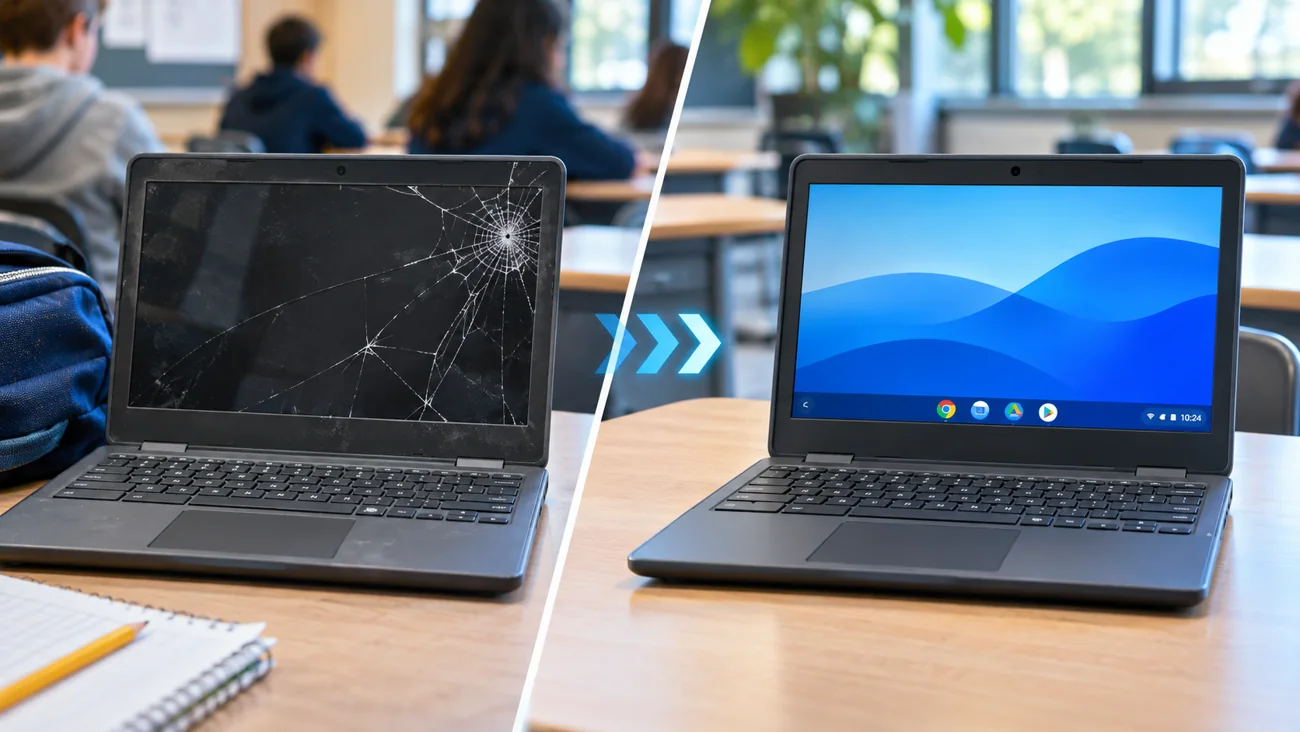
Does this happen at your school?
A student brings in a Chromebook with a broken screen, a keyboard that no longer responds, or a device that stops charging during the school day.
You do not need to know the technical cause before reaching out. A short description and the correct device details are enough to start an assessment.
Common issues ITCAD can assess
- Cracked or flickering screens and damaged hinges
- Batteries that drain quickly or no longer hold charge
- Broken keys, unresponsive trackpads and keyboards
- Charging-port failures and devices that will not turn on
- ChromeOS, Wi-Fi access and enrollment-related problems
- Multiple damaged devices awaiting evaluation
From problem to next step
Every school situation is different. This is how I would evaluate your request and determine an appropriate response.
- 1
Provide the manufacturer, exact model and asset tag (if available).
- 2
Describe symptoms and attach photographs of visible damage.
- 3
I review likely causes, available options and parts compatibility.
- 4
We agree on remote troubleshooting, on-site evaluation or a permitted repair arrangement.
- 5
After authorized work, test the device and document the outcome in ITCAD.
A clear assessment of the device and a documented plan to return it to student use when repair is practical.
Describe what is happening.
Useful details for the ticket: Device make and exact model, school asset tag (if allowed), quantity of affected units, visible damage photos and whether the device powers on.
ITCAD provides online ticket intake and a record of communication. Repair scope, schedule, parts and costs are discussed and authorized before work begins.