BenQ or classroom display not responding?
When an interactive display loses touch, sound or signal, the whole lesson can be affected. Practical classroom-focused troubleshooting helps identify the failing connection or setting.
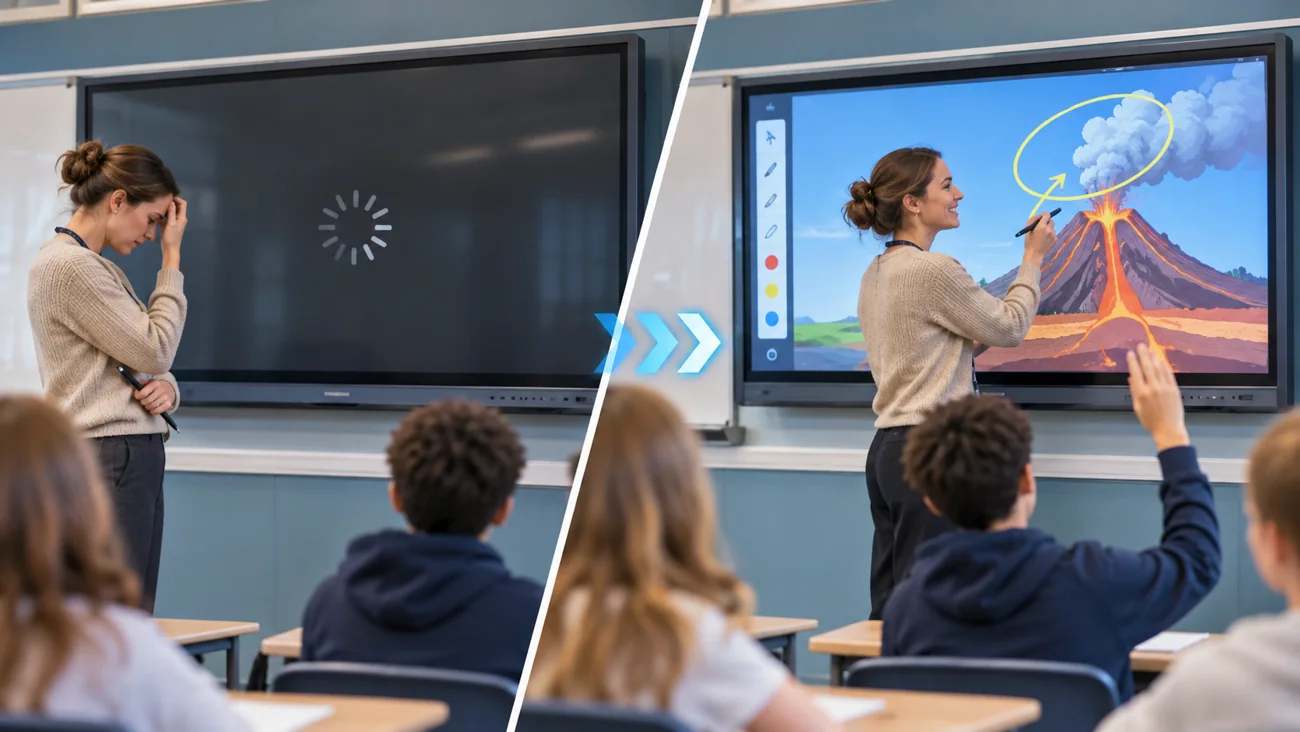
Does this happen at your school?
A teacher sees “No Signal” on the display, touch input stops working, or video is visible but there is no sound.
You do not need to know the technical cause before reaching out. A short description and the correct device details are enough to start an assessment.
Common issues ITCAD can assess
- BenQ and Sharp interactive display troubleshooting
- No signal from laptops, Chromeboxes or other sources
- Touch calibration and USB connectivity issues
- Audio output, input switching and casting problems
- Apps, firmware settings and device setup checks
- Peripheral and cable-related classroom display problems
From problem to next step
Every school situation is different. This is how I would evaluate your request and determine an appropriate response.
- 1
Identify the exact display model and connected source device.
- 2
Collect a photo of the error or current screen.
- 3
Check inputs, cabling, source selection and touch/USB connections.
- 4
Perform authorized remote guidance or schedule physical evaluation.
- 5
Record findings and recommended next steps in the ticket.
A documented approach to restoring the teaching display and connected classroom equipment.
Describe what is happening.
Useful details for the ticket: Display make/model, photo of the message, connected laptop/Chromebox details and whether touch, sound or image is failing.
ITCAD provides online ticket intake and a record of communication. Repair scope, schedule, parts and costs are discussed and authorized before work begins.