Seat-level inventory
Assign stable station numbers and record asset tags, peripherals and condition. A room map helps teachers report the exact affected seat.
K–12 TECHNOLOGY OPERATIONS
Keep shared instructional workstations ready for the next class by managing the lab as a room of connected seats, not as unrelated repair tickets. Track station condition, approved software, peripherals and recurring infrastructure faults.
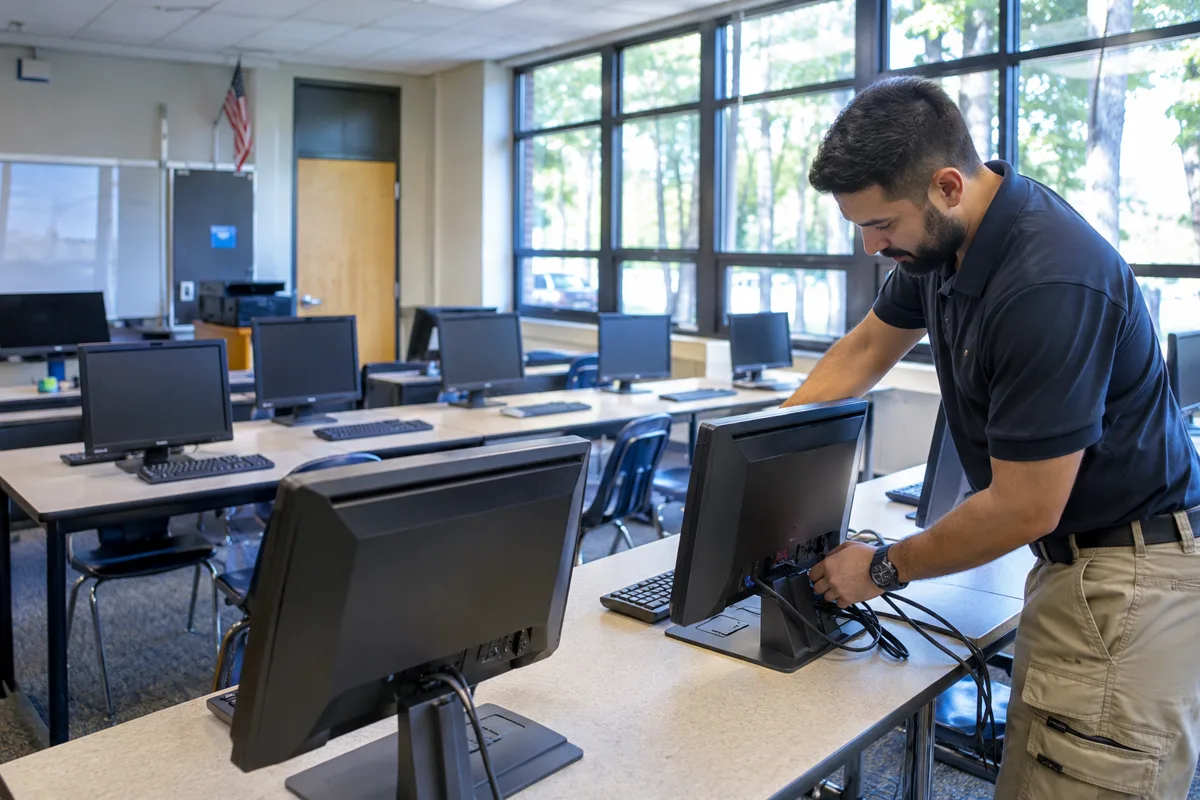
Assign stable station numbers and record asset tags, peripherals and condition. A room map helps teachers report the exact affected seat.
Document required browsers, applications, accessibility tools and account policies for each course or assessment.
Verify the original task after maintenance and communicate unavailable seats before the next scheduled lesson.
| Symptom | Possible cause | First useful check |
|---|---|---|
| No display | Power, input selection, cable or monitor | Compare with a known-good display and cable |
| Slow sign-in | Profile, storage, identity or network | Time a test login and compare stations |
| Application missing | Deployment group or licensing | Check approved software baseline |
| Multiple offline seats | Switch, uplink or DHCP | Identify shared infrastructure before endpoint resets |
| Audio unavailable | Output selection or damaged headset | Test a known-good peripheral |
| Repeated crashes | Updates, storage, memory or software | Capture error and review logs before replacement |
Obtain authorization for configuration changes, preserve required files, and test on a representative station. Do not disable filtering, endpoint protection or account controls to make an application work. Escalate suspected security incidents through the school's incident process.
Before class, check reported unavailable seats. Weekly, review recurring faults and spare peripherals. During planned breaks, evaluate operating-system support, approved software, inventory accuracy and equipment replacement needs. Adjust frequency to actual lab use.
Answers for teachers, school administrators and technology coordinators planning shared-room maintenance.
For broader campus equipment care, see school computer maintenance.
Check visible faults before scheduled classes, review recurring issues weekly, and schedule deeper maintenance around usage and school breaks.
Provide the room, station number, time, application, error text and whether nearby stations are affected. Do not include student passwords.
Remove unsafe equipment first, then restore enough functional seats for the next class. Group repeated faults for shared-cause investigation.
Maintain an approved baseline for each instructional use. Accessibility tools and specialized courses may require documented exceptions.
Use school-approved individual or managed shared-session configurations. Avoid sharing staff credentials or leaving sessions signed in.
Yes. Pilot updates on representative stations and schedule deployment outside teaching or assessment windows.
Compare affected stations by switch, room and network segment. Test a known-good station before changing endpoint settings.
Check its cable, adapter status and assigned network configuration, then compare with a working neighboring station.
Follow manufacturer instructions, disconnect power where required, and apply approved cleaner to a cloth rather than spraying electronics.
Stop using it and notify authorized facilities personnel. Do not overload outlets or attempt electrical repairs as routine IT maintenance.
Use approved school storage and retention rules. Shared local profiles may be cleared, so explain where work must be saved.
Check the current assessment vendor requirements, secure browser version, peripherals, network access and a representative practice session.
Unsupported systems require a documented risk decision, an eligible supported update arrangement or replacement. Check Microsoft lifecycle information.
Use a non-sensitive audio sample and verify output selection, connector condition and volume on each required station.
Test required assistive software, input devices and display settings with authorized staff before the class that needs them.
Use an approved image after confirming backups, licensing, enrollment and recovery requirements. Reimaging can erase local data.
Map each seat number to asset tag, model, operating system, warranty status and last verified condition.
Inventory, logs and approved software checks may be remote. Cabling, cleaning and physical damage usually require authorized on-site work.
Repeat the original task, test sign-in and required applications, then record the result and any unresolved limitation.
List stations checked, faults, actions, test results, outstanding risks and recommended next steps with responsible owners.
Include school location, station count, upcoming class or testing dates, device types and known faults. Scope, scheduling and any on-site work require confirmation.
Create your account, then open a ticket. Requests are reviewed through the ITCAD support process.