School Computer Maintenance for K–12 Campuses
Keep classroom desktops, staff workstations and shared computer labs dependable with a planned maintenance workflow—not just a response after something breaks.
ITCAD helps schools organize asset checks, platform-appropriate updates, security reviews, performance diagnostics and documented readiness testing. Scope and scheduling are confirmed with each school.
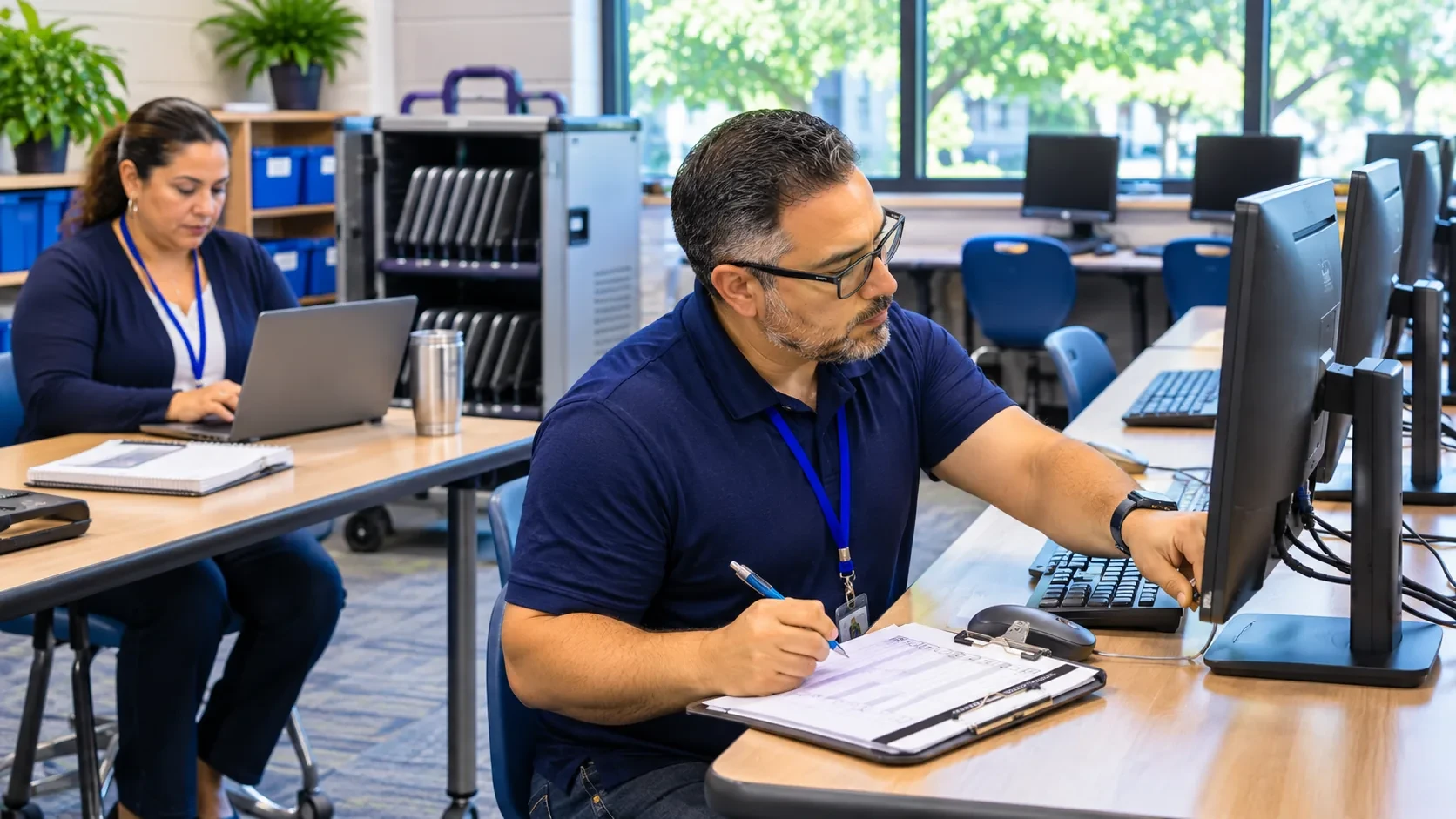
What a School Computer Maintenance Program Actually Covers
Schools operate a mix of shared student workstations, teacher computers and managed devices with different support lifecycles. A useful program starts with an accurate inventory and a documented baseline, then applies the right checks to each platform. It should not treat a Windows desktop, a managed Chromebook and a testing kiosk as interchangeable.
Maintenance scope by environment
- Computer labs: startup, login, browser/testing software, keyboards, audio and network consistency.
- Teacher workstations: classroom display, docks, conferencing peripherals and instructional applications.
- Office computers: supported software, identity access, approved printers and secure document handling.
- Shared devices: asset assignment, policy compliance, user profile hygiene and sign-out controls.
Before changing anything
Confirm the school’s maintenance window, device ownership, backup requirements, administrator authorization and any active assessment freeze. Avoid resetting devices, bypassing management, collecting passwords or accessing student records merely to complete a checklist.
Service transparency: This is a service-planning guide, not a claim that ITCAD has performed the pictured work or that a specific SLA, warranty or outcome is guaranteed.
Common Maintenance Findings and Next Actions
| Observed issue | Possible cause | Recommended next action |
|---|---|---|
| Slow startup | Full storage, aging drive, startup apps | Check health and capacity; review approved startup items; assess SSD upgrade |
| Repeated update failures | Insufficient space, policy conflicts, service errors | Review logs and management policy; pilot a supported remediation |
| Overheating or fan noise | Dust, blocked vents, failing fan | Inspect airflow; clean safely per OEM instructions; test thermals |
| Login or account errors | Identity, time sync or management mismatch | Verify identity service, account state and policy before resetting |
| Unreliable lab Wi-Fi | Coverage, interference, adapter or auth issue | Compare multiple devices; collect wireless evidence; escalate network issues |
| Missing classroom audio | Default output, driver or cable issue | Test audio route, peripherals and approved driver version |
| Disk warnings | Storage degradation or file-system errors | Protect data first; assess replacement and sanitization |
| Recurring malware alerts | Potential compromise or false positive | Isolate per school policy; preserve evidence and follow incident workflow |
Six-Stage Maintenance Workflow
Agree on sites, asset groups, change windows and data safeguards.
Reconcile tags, OS versions, device health and known issues.
Confirm backups; test impactful changes on representative devices.
Perform approved updates, cleaning, checks and repair referrals.
Test login, network, apps, audio, display and peripherals.
Document exceptions, owners, replacement candidates and next review.
Maintenance Readiness Checklist
- Confirm asset tag, serial number, room and assigned owner
- Verify school authorization and maintenance window
- Check backup or recovery requirements before risky changes
- Review OS support lifecycle and pending security updates
- Test disk health, available storage, startup and cooling
- Inspect keyboard, display, audio, webcam and network
- Check device management, endpoint protection and policy compliance
- Record findings, changes, acceptance tests and follow-up ticket
Choose the Right Maintenance Window
| Timing | Appropriate work | Important constraint |
|---|---|---|
| Weekly / routine | Ticket trends, critical alerts, inventory exceptions | Escalate security issues promptly rather than waiting |
| Monthly / planned | Health sampling, patch compliance, storage and peripheral checks | Coordinate reboots and testing software changes |
| Before exams | Device, browser, audio and kiosk readiness validation | Follow assessment vendor requirements and freeze dates |
| Summer / break | Large-scale refreshes, deep cleaning, replacement and disposal | Protect data and leave time for acceptance testing |
School Computer Maintenance FAQs
Practical answers about maintenance frequency, secure handling, updates, labs, device lifecycles and service expectations. Expand each question for the full answer.
Related guides: teacher computers, student Chromebooks and support workflow.
What does school computer maintenance include?
A planned program covers inventory verification, approved operating-system and application updates, endpoint security checks, storage and performance review, peripheral testing, safe physical cleaning, and documented follow-up. The exact scope depends on device ownership and school policies.
How often should classroom computers be inspected?
Use a risk-based schedule rather than one fixed interval: inspect high-use labs more frequently, review critical security updates as vendors release them, and conduct broader checks before each semester and major assessment period.
What is the difference between preventive maintenance and computer repair?
Preventive maintenance checks healthy devices for developing issues and applies approved upkeep. Repair begins after a specific failure is detected. A maintenance visit may identify a repair need but should document it as a separate action.
Can maintenance happen while classes are in session?
Inventory and non-disruptive checks can sometimes occur during class, but reboots, disruptive updates, device opening and network changes should be scheduled for approved maintenance windows.
Should schools automatically install every available update?
No. Prioritize security risk while checking compatibility with learning software, device-management policies, testing tools and required peripherals. Pilot impactful changes before wider rollout.
How do you handle Windows computers that are out of support?
Identify the exact Windows edition and vendor support status, assess whether the hardware supports a currently supported release, and plan migration, replacement or tightly controlled interim mitigations rather than assuming antivirus alone is sufficient.
Can you maintain Chromebooks and Windows desktops in the same program?
Yes, but use platform-specific checklists. ChromeOS update policies, auto-update expiration and enrollment differ from Windows servicing, drivers and endpoint protection.
How should maintenance work with Google Admin and device policies?
Check that managed ChromeOS devices remain enrolled, correctly assigned and compliant with school policy. Avoid powerwashing or unenrolling devices without authorized procedures and a documented recovery plan.
What should be checked before a computer lab is used for testing?
Verify power, network connectivity, approved browser or testing application, headphones, input devices, login behavior, display settings and required kiosk or lockdown configurations using the testing provider’s current instructions.
Is compressed air safe for cleaning school computers?
Cleaning should follow the device manufacturer’s instructions. Shut down and disconnect power as appropriate, use approved ESD precautions, avoid moisture and never open power supplies. Aerosol propellants and fan overspin can create hazards.
How do you protect student data during maintenance?
Use authorized accounts and least privilege, avoid accessing student content unless necessary, keep logs free of passwords and personal data, and follow school retention, incident-response and FERPA-related procedures.
Should a technician collect teacher passwords to test a computer?
No. Prefer delegated admin tools, test accounts or teacher-present sign-in. Never ask staff to email or place passwords in tickets.
What should be recorded in a maintenance ticket?
Record asset tag, room, date, symptoms or checks performed, software or hardware changes, test outcome, outstanding risks, technician and approval reference—without unnecessary student or staff personal information.
How do you prioritize maintenance across several campuses?
Prioritize devices used for instruction and testing, known vulnerabilities, repeated failures, accessibility needs and sites with limited spare equipment. A shared asset list and ticket queue support transparent scheduling.
Can maintenance extend the useful life of older desktops?
Sometimes. Cleaning, supported software updates, storage health checks and compatible RAM or SSD upgrades can help. Replacement is preferable when security support, repair economics or performance requirements cannot be met.
How do you decide whether to replace a failing hard drive?
Check drive-health evidence and symptoms, confirm an approved backup and data-handling plan, compare parts and labor against replacement, and use authorized secure disposal for the retired drive.
Do schools need a spare-device pool?
A small, tracked pool can reduce classroom disruption during repairs and updates. Size it from device failure history, enrollment and service turnaround rather than relying on an arbitrary percentage.
What if a school has no accurate device inventory?
Begin with a baseline audit using asset tags, serial numbers, model, assigned location, management status and support lifecycle. Reconcile discrepancies before committing to a district-wide maintenance schedule.
Can routine maintenance prevent every outage?
No. It can reduce avoidable failures and improve recovery readiness, but component defects, power events, software regressions and network outages can still occur. Avoid guaranteed uptime claims.
How do you verify a computer is ready to return to a classroom?
Perform a documented acceptance check: boot, managed login, network, approved applications, audio/video, input devices, updates and relevant classroom peripherals. Obtain school approval for any unresolved exception.
What is the safest way to retire old school computers?
Follow school data-retention rules, use an approved media-sanitization method appropriate to the drive and disposal path, document custody, and recycle through an authorized electronics handler.
How should maintenance be scheduled before the new school year?
Start with inventory and lifecycle exceptions, pilot updates, prepare lab and staff devices, verify classroom peripherals, then reserve time for remediation and a final readiness review before teachers return.
Can ITCAD guarantee a specific response time or maintenance frequency?
Scope, response expectations, visit frequency and pricing should be agreed in writing after reviewing the school’s device count, locations, access requirements and service needs. This page does not promise an SLA.
How can a school request a maintenance assessment?
Use the ITCAD contact page or support portal to describe campus locations, device types, approximate counts, key issues and preferred maintenance windows. Do not submit passwords or student records.
Official Technical and Privacy References
Use these primary resources when planning updates, lifecycle decisions, student-data safeguards and equipment retirement. Vendor guidance and support dates may change; confirm the current version before acting.
Plan Maintenance Around Your School Calendar
Tell ITCAD how many devices you manage, which operating systems they use, whether they are shared or assigned, and which school dates cannot be disrupted. A scoped assessment can identify the highest-priority work and an appropriate service plan.
Contact ITCAD