One student device
Compare the affected Chromebook with a working managed Chromebook in the same room. Check its network profile, OS version and hardware condition.
Find out whether a student's Chromebook, school network policy or classroom wireless infrastructure is preventing access to learning.
Start with a safe comparison, not a factory reset. This practical K–12 guide helps teachers report useful evidence and school IT teams diagnose managed ChromeOS devices without bypassing school safeguards.
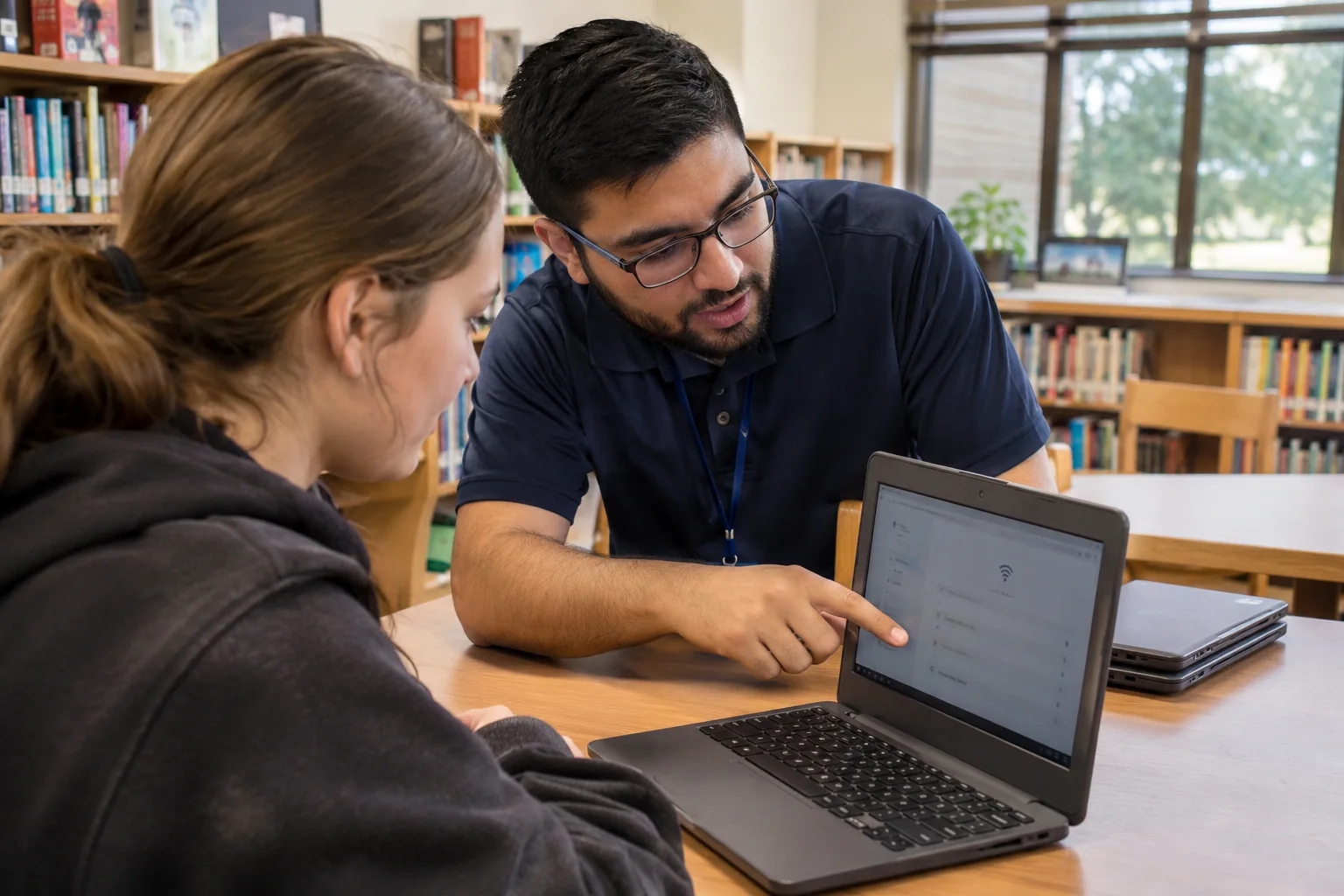
A Chromebook can see a wireless network yet fail to authenticate, obtain usable network settings, reach the internet or open a filtered learning resource. Those are different faults and require different responses.
Compare the affected Chromebook with a working managed Chromebook in the same room. Check its network profile, OS version and hardware condition.
Review organizational-unit policies, sign-in state, certificates and whether the same issue follows the account to another managed device.
Look for access point, DHCP, DNS, firewall, authentication or upstream problems and escalate with precise affected locations.
Use this table to choose the next diagnostic step. It is not a recommendation to change security settings or school-wide policies without authorization.
| Symptom | Likely investigation | Safe next action |
|---|---|---|
| Wi-Fi network missing | Radio disabled, weak coverage, or SSID not available | Compare nearby devices; check approved SSID and room |
| Incorrect password / cannot authenticate | Changed PSK, EAP or certificate mismatch | Verify centrally managed network profile |
| Connected, no internet | Gateway, DNS, filter or upstream outage | Compare approved websites and another device |
| Frequent disconnects | Roaming, signal, interference or radio fault | Record time and location; compare a known-good device |
| Works before sign-in only | User policy or authentication differences | Check device versus user policy scope |
| Only one classroom fails | AP, RF coverage or room-specific load | Escalate with room and affected-device counts |
| Only one website fails | Filtering, DNS or app issue | Test multiple approved destinations |
| One device fails everywhere | Hardware, profile or ChromeOS issue | Inspect model/version and authorized diagnostics |
This workflow keeps the student's learning needs visible while preserving district management, privacy and network security controls.
Isolate one device, one user, one room or the entire school before changing settings.
Collect asset tag, error, time, room, SSID and ChromeOS version without student passwords.
Test a managed Chromebook under the same conditions to separate device from infrastructure.
Check OU, deployed network profile, authentication and certificates with authorized access.
Use school-approved changes, test the affected device and avoid bypassing safeguards.
Verify approved learning resources, document the resolution and watch for repeat incidents.
Avoid: Powerwash, unmanaged hotspots, disabling filtering, deleting certificates or changing security settings without school IT authorization.
| Evidence | Primary owner | Escalation trigger |
|---|---|---|
| One device fails in multiple rooms | Endpoint / Chromebook support | Hardware suspected or policy cannot be restored |
| One account fails across devices | Google Workspace / identity administrator | OU, certificate or authentication changes required |
| Many devices fail in one room | Wireless network team | AP offline, RF issue or capacity limit |
| School-wide “connected, no internet” | Network / ISP coordination | Gateway, DNS, firewall or upstream failure |
| Only a learning app is unavailable | Application / filtering administrator | Approved service blocked or authentication broken |
Do not assume a Chromebook replacement will solve an infrastructure or identity problem. Compare evidence first.
Practical answers for teachers, school administrators and technology teams supporting student Chromebooks.
The Chromebook may have a working Wi-Fi radio connection but no usable route to the internet. Compare another device on the same SSID, test a school-approved site, and have IT inspect DNS, gateway, filtering and upstream connectivity before changing device settings.
A single-device issue points toward its saved network profile, wireless hardware, policy assignment or software state. Compare the affected device with a known-good managed Chromebook in the same seat and record the ChromeOS version and error message.
Confirm that Wi-Fi is enabled, choose the school-approved network, move closer to a known working area, and restart the Chromebook once. Avoid factory resets, removing management, or connecting students to unknown networks.
Yes. A changed pre-shared key or authentication profile can prevent reconnection. School IT should update the centrally deployed network configuration and verify it on a test organizational unit before broad rollout.
Check whether the network is available to other nearby managed devices. If only one Chromebook cannot see it, examine Wi-Fi enablement and radio behavior. If several cannot, inspect the access point, SSID broadcast and coverage.
The issue may involve coverage, interference, AP capacity, roaming or a room-specific network configuration. Record both locations and compare signal and behavior with a second device; escalate patterns to wireless infrastructure support.
Yes. Managed ChromeOS network policies can be assigned by organizational unit or group, and may configure credentials, certificates and connection behavior. Review policy scope and recent changes before making local modifications.
User-level and device-level policies may differ. Compare the sign-in screen with the student session, check which account and OU are affected, and review certificate and network policy assignments without exposing student credentials.
Enterprise networks can require valid server trust, device or user certificates, and matching authentication settings. An expired or missing certificate or incorrect EAP configuration may block access. IT should verify the approved configuration rather than bypass certificate checks.
Only when the school expressly authorizes it. Personal hotspots can bypass filtering and monitoring requirements, create privacy concerns, and interfere with classroom wireless networks.
A guest SSID may have different filtering, access and enrollment policies. Use it only if school IT approves that workflow; do not treat guest access as a permanent fix for managed student devices.
Test whether multiple approved sites load and whether other services work. If only one site is blocked, review web filtering, DNS and application policies. If all sites fail, investigate network connectivity and upstream services.
Not necessarily. A reset may erase local data and require re-enrollment or policy restoration. It should be an authorized last resort after checking network profiles, updates and managed settings, with data handling reviewed first.
Occasionally a change in software, drivers or policy compatibility can affect connectivity. Record the device model, version and onset date; compare with unaffected devices and follow the school update and rollback process.
Document time, room, SSID, number of affected devices and whether disconnects occur under load. Test with a known-good Chromebook and have IT correlate wireless controller logs, AP capacity and upstream network events.
Include asset tag, model, ChromeOS version, location, approved SSID, exact error, time, whether other devices work, steps already tried and instructional impact. Do not include passwords, full student identifiers or screenshots containing sensitive data.
Yes. A faulty radio, antenna or damaged chassis can produce weak signal or no available networks. Compare behavior across locations and networks, then refer suspected hardware failures for authorized inspection.
Manual DNS changes can conflict with school filtering and management policies. IT should first establish whether DNS resolution is failing and make changes centrally only when approved.
Standardize managed network profiles, review certificate expiration, monitor AP capacity, maintain supported ChromeOS versions and analyze ticket trends by room, model and organizational unit.
Escalate when multiple devices or rooms are affected, authentication infrastructure fails, access points go offline, or the network has an outage. Include evidence from device comparisons so network staff can isolate the affected layer.
No. Resolution depends on device ownership, management access, network infrastructure, available credentials and the school’s authorization. Scope, access method and any onsite work should be confirmed before service begins.
Check synchronization and local storage before any reset or replacement. Follow the school’s retention and privacy rules and avoid collecting student files unnecessarily.
These are independent vendor and government resources. Follow your district's policies and confirm model-specific instructions before applying changes.
Scope note: This page is educational troubleshooting guidance. ITCAD services, response times, remote management permissions and onsite availability must be confirmed for each school; no outcome or certification is implied.
Share the device symptoms, affected rooms and instructional impact so support can begin with the right evidence.
Describe Your School's IT NeedsCreate your account, then open a ticket. Requests are reviewed through the ITCAD support process.