Physical condition
Inspect power connections, ventilation, visible wear and safe workstation placement without unnecessary disassembly.
A practical, repeatable way to keep classroom desktops, staff computers and shared labs reliable—without waiting for a breakdown.
Inspect hardware, verify updates, test essential functions and document follow-up before instructional time is lost.
Discuss a School Maintenance PlanService scope and availability are confirmed after reviewing your school’s needs; no fixed response-time guarantee is implied.
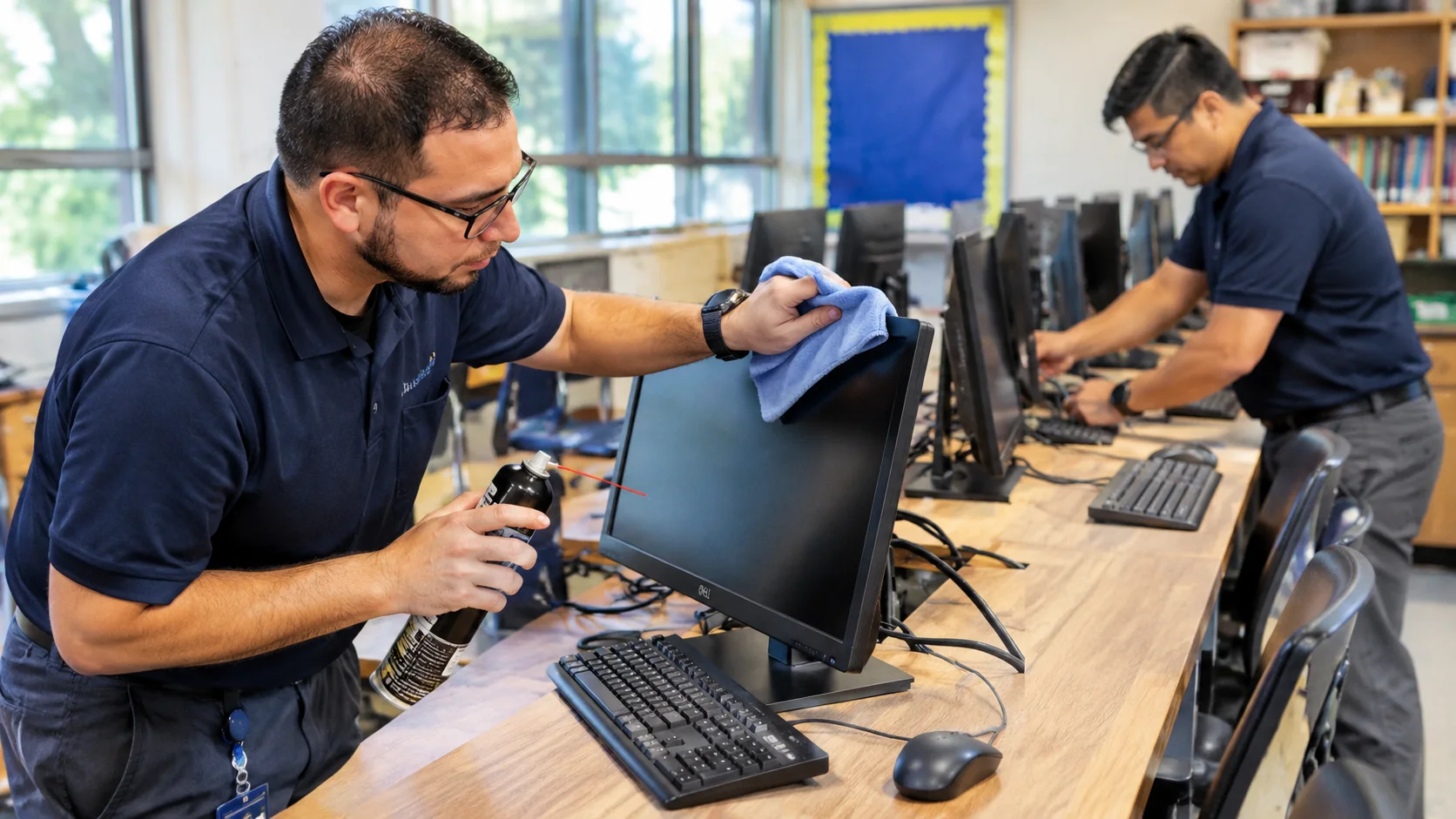
Preventive maintenance is scheduled work to identify avoidable failures, configuration drift and security gaps. It is not a promise that hardware will never fail, and it is different from repairing an already broken device.
Inspect power connections, ventilation, visible wear and safe workstation placement without unnecessary disassembly.
Check operating-system support, approved patches, application versions and firmware advisories before deployment.
Verify managed accounts, endpoint protection and approved settings; escalate suspicious activity rather than hiding it.
Test login, Wi-Fi or Ethernet, audio, camera, displays and required learning applications.
Compare shared PCs against the school’s standard configuration and confirm each workstation is usable.
Record inspection results against asset IDs, open tickets for defects and schedule a recheck after remediation.
Use this as a baseline and adapt it to device models, district policy and manufacturer guidance.
| Inspection area | Recommended check | Escalation trigger |
|---|---|---|
| Inventory and ownership | Confirm asset ID, room, assigned user and warranty status | Missing or duplicate records |
| Physical condition | Inspect power cord, hinges, vents, ports and display | Damage, overheating, unsafe cable |
| Operating system | Check supported version, approved patches and reboot state | Unsupported or overdue updates |
| Endpoint security | Confirm school-approved protections and management status | Unmanaged or disabled protections |
| Storage and performance | Review capacity, errors and device diagnostics | Low space or repeated disk errors |
| Connectivity | Test approved Wi-Fi or wired network and required apps | Authentication or DNS failure |
| Peripheral readiness | Test keyboard, camera, audio and printers as applicable | Failed classroom peripheral |
| Closeout | Record findings, owner and next inspection | Open defects without a ticket |
| When | What to do |
|---|---|
| Weekly / automated | Review patch, endpoint protection and critical health alerts where management tools are available. |
| Each term | Spot-check classroom usability, peripherals, lab consistency and recurring tickets. |
| Before major testing | Verify approved applications, sign-in, accessibility settings and spare-device readiness. |
| Annually | Complete a deeper physical and inventory review; assess replacement candidates and unsupported systems. |
These are planning examples, not mandatory intervals. Adjust based on manufacturer requirements, use and local risk.
Agree on campuses, device types, authorized work, school hours and data-access boundaries.
Match each workstation to a unique asset ID and known location; flag missing or retired records.
Run standardized hardware, software and network checks, noting the actual evidence of each problem.
Separate immediate safety/security issues from planned repairs and routine improvements.
Apply approved fixes in maintenance windows, then retest the original symptom and essential school apps.
Deliver a concise record of passed checks, unresolved tickets, replacement recommendations and next dates.
Privacy and safety: Do not store student records in inspection notes. Any remote access, local-data backup or device disposal should follow school policy and applicable requirements. Disconnect power before manufacturer-approved internal work.
Ask whether the proposal covers only inspections or also approved fixes, parts, travel, after-hours work, follow-up visits and reporting. Request a sample device-level report and clarify who owns asset data and administrator credentials. Avoid vendors promising zero downtime or universal turnaround times without a written scope.
For seasonal deployment work, see Back-to-School IT Support Services. For teacher workstation problems, see Teacher Computer Support. This page focuses on recurring preventive checks, not device fleet enrollment or bulk Chromebook repair.
Practical answers for school administrators, technology coordinators and teachers.
A scheduled process of inspecting, updating, cleaning, testing, and documenting school-owned computers before failures disrupt instruction. It includes desktops, staff laptops, shared lab PCs, and associated peripherals; repairs are a separate corrective workflow.
Use a risk-based cadence: a brief functional check each term, software and security checks according to district policy, and a fuller physical inspection annually. High-use labs or aging equipment may need more frequent checks.
Confirm asset identity, inspect visible damage and cables, check ventilation, verify approved updates and endpoint protection, test sign-in and network access, review storage and disk health indicators, and record issues for follow-up.
No. Internal cleaning should be performed only when needed, by authorized staff following manufacturer instructions and electrical safety procedures. Opening devices may affect warranties and is inappropriate for some sealed systems.
Power down and disconnect equipment where practical. Use manufacturer-approved microfiber cloths and cleaning agents applied to the cloth rather than directly to equipment. Never spray liquids into ports or vents.
Only use products and techniques approved by the equipment manufacturer. Avoid directing propellant or debris into sensitive components; use trained technicians and suitable ventilation. Physical cleaning must not substitute for diagnostics.
Review operating-system security updates, browser versions, approved applications, firmware advisories, and endpoint protection status. Stage and test changes before wide deployment to avoid interrupting instructional applications.
Low-impact checks may be scheduled around lessons, but reboots, cable work, disassembly, and major updates should generally happen after school, during planning periods, or on scheduled maintenance days.
Start with devices supporting safety-critical operations, attendance and front-office work, high-use labs, standardized testing, and teachers with no alternative device. Use age, failure history, and device health to refine the order.
Look for recurring errors, unusual performance changes, operating-system warnings, and vendor diagnostic results. Back up permitted data promptly and replace suspect drives according to school policy; no single health indicator guarantees future reliability.
Yes, when local files or device configuration may be affected. Verify backup ownership and restore procedures first; avoid copying student information to personal drives or unapproved cloud services.
Tag the asset, document symptoms and evidence, classify severity, provide a loaner when available, and route it to repair, warranty service, or replacement approval. Do not mark it classroom-ready until the issue is resolved and retested.
Labs benefit from standardized images or configurations, seat-by-seat functional checks, peripheral tests, software license checks, cable inspections, and coordinated maintenance windows to reduce widespread classroom disruption.
Basic connection and functionality checks can be included in a school-wide plan, but specialized repairs and calibration should be scoped separately and performed under vendor guidance.
Maintain an asset ID, campus and room, device model, inspection date, observed condition, updates performed, test outcome, follow-up ticket, and technician initials. Limit personal data and restrict record access appropriately.
A documented process helps identify missing patches, unsupported systems, unauthorized software, failed endpoint protection, and weak account practices. It complements, rather than replaces, district incident response and security monitoring.
Compare repair cost, age, manufacturer support status, expected remaining life, compatibility with required applications, and disruption risk. A machine without supported security updates is often a stronger replacement candidate.
Routine checks can catch some preventable failures and configuration drift earlier, but they cannot eliminate all breakdowns. Track repeat incidents and missed instructional time to evaluate whether the program is helping.
Confirm approved testing software, device specifications, network and power reliability, login permissions, accessibility accommodations, and a spare-device plan. Follow the testing vendor and district rules rather than making last-minute untested changes.
Apply district access controls, FERPA-aligned vendor agreements where applicable, minimum-necessary access, secure handling, and approved data disposal. Technicians should not export student records to personal accounts.
Define included device types, campuses, visit frequency, service hours, exclusions, access permissions, documentation, escalation paths, data-handling expectations, and pricing. Do not assume every repair or part is included.
Begin with an accurate asset list, patch compliance, backup verification, and checks on high-impact devices. Use a simple repeatable checklist and ticket log before expanding to full annual inspections.
These references support general security, privacy and lifecycle practices; they do not certify ITCAD or replace local policy.
Start with the number of computers, campuses, operating systems, current asset records and the school calendar. We can use that information to discuss a realistic inspection scope and reporting process.
Contact ITCADCreate your account, then open a ticket. Requests are reviewed through the ITCAD support process.