Batch intake & asset control
Assign a status to each asset tag and reconcile devices received against the school’s approved list.
Organize multiple broken Chromebooks with a single accountable process—from intake and diagnosis to approvals, quality checks and return to class.
A practical guide for K–12 leaders managing repair backlogs, mixed device models, classroom loaners and limited budgets.
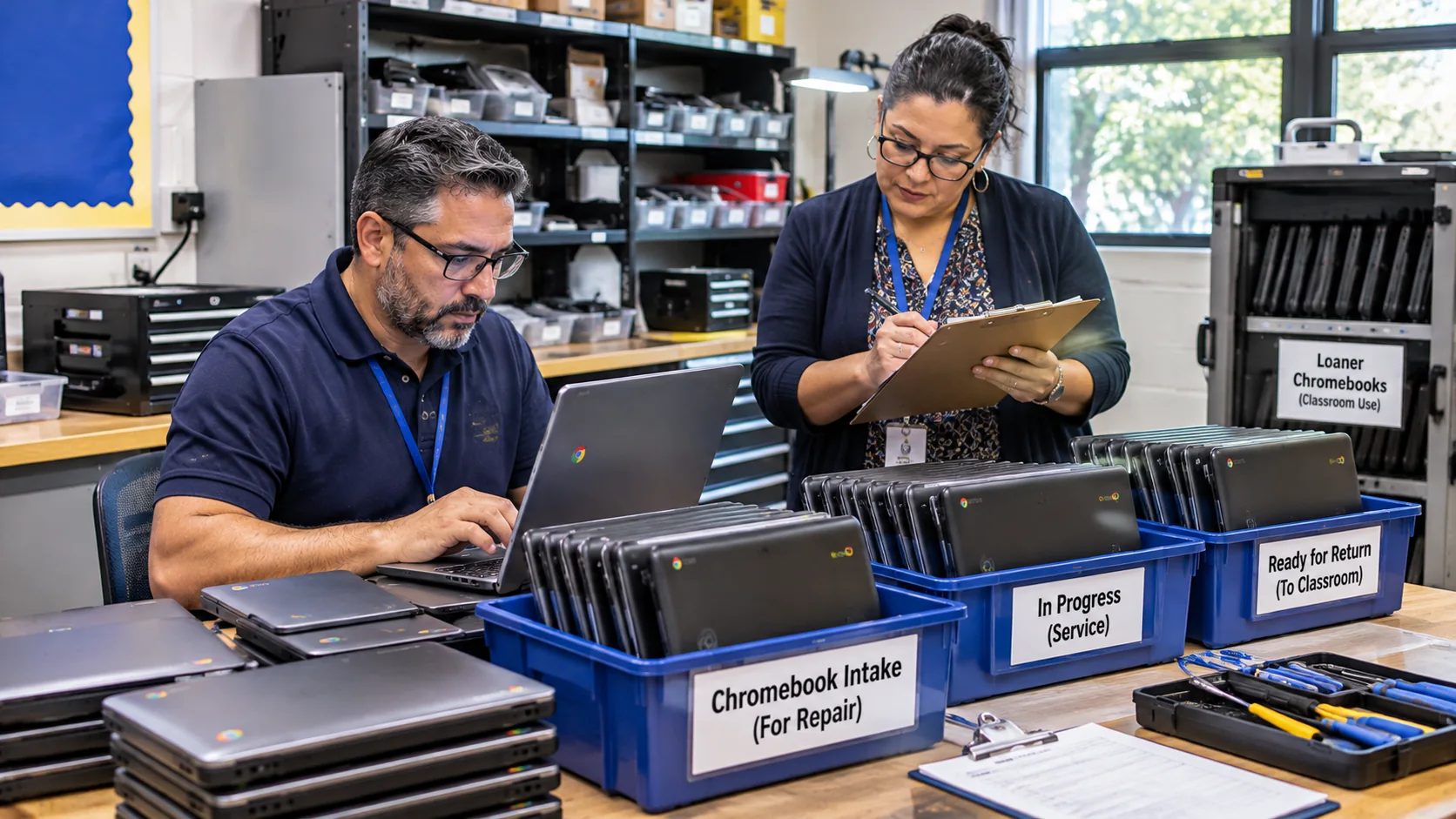
A school should record every device by asset tag, group faults by type and exact model, separate safety risks, approve repair-versus-replacement criteria and track each Chromebook until it is tested and returned.
Batch repair is not simply fixing many devices at once. Its value comes from controlled inventory, realistic priorities, documented budgets and preserving access to learning while devices are unavailable. Different models and damage types still require individual decisions.
Each part of the process helps prevent lost devices, unnecessary parts purchases and unapproved repairs. These are recommended planning practices, not a promise of work on every model.
Assign a status to each asset tag and reconcile devices received against the school’s approved list.
Separate screens, keyboards, charging, batteries, software symptoms and devices needing safety review.
Compare labor and compatible parts with warranty coverage, age and remaining ChromeOS support.
Use categorized estimates, authorized limits and documented decisions before purchasing parts.
Coordinate a tracked school-owned loaner pool so repairs do not unnecessarily interrupt instruction.
Verify the reported fault, relevant device functions and school management before documenting handoff.
Use this table to create an accurate repair queue. Teachers may report symptoms and perform school-approved non-invasive checks; internal electrical or hardware repairs belong to authorized, qualified personnel.
| Fault group | Safe first check | When to escalate | Track in ticket |
|---|---|---|---|
| Cracked screens / hinge damage | Inspect externally; confirm exact model and display type | Sharp glass, unstable hinge or exposed parts | Asset tag, image if permitted, model, severity |
| No charging / USB-C faults | Check approved known-good charger and indicators | Heat, swelling, exposed cable or damaged port | Adapter type, charging LED, affected count |
| Keyboard / touchpad faults | Record missing keys and behavior in approved app | Liquid damage or unsafe enclosure | Model, failing keys, class impact |
| Blank display / startup failure | Record lights, sounds and startup behavior | Repeated failed boot or suspected board damage | Device model, symptoms, last successful use |
| Slow / app or account problems | Compare approved account, Wi-Fi and device state | Managed policies or student-data access needed | Error, organizational unit, number affected |
| Battery wear / shutdown | Use ChromeOS Diagnostics if device boots and policy allows | Swollen battery, excessive heat or odor | Battery behavior, device age, any test summary |
| Mixed aging fleet | Check ChromeOS update eligibility and inventory | Unsupported platforms or unrepairable models | Model count, support dates, replacement options |
Identify devices, document symptoms, report safety concerns, approve budgets and coordinate loaners using authorized school procedures.
Validate diagnosis and compatible parts, identify manufacturer restrictions, document repairs and test units before their return.
Build an estimate by exact Chromebook model and fault category—not by a blanket cost for every device. Compare approved labor and parts, warranty coverage, shipping, downtime and the device’s remaining supported use.
Set spending limits and a clear approval path for unexpected findings. A batch containing old, unsupported and damaged devices may need several outcomes: repair some, route some through warranty and replace others. Keep enough managed loaner devices available for critical classes when possible.
Authoritative resources: Google for Education — Chromebook repair best practices; Google — ChromeOS Diagnostics; U.S. Department of Education — student privacy.
Use this as a planning tool for the technology coordinator, principal and school operations team.
Record school asset tags, count by model and custody before any device moves.
Separate normal repairs from any device requiring immediate stop-use evaluation.
Note affected classes, testing dates, spare devices and expected classroom impact.
Agree repair-cost ceilings, referral and replacement criteria before work.
Record diagnosis, estimate, authorization, parts stage, repair and return.
Confirm tests, managed enrollment, return date and school handoff signature.
Share model families, approximate quantity, symptom mix and an authorized contact.
Reconcile asset tags, classify damage and flag unsafe units.
Check a representative mix without assuming every model has the same fault.
Document repair groups, quote assumptions, exceptions and spending limits.
Complete authorized work or manufacturer referral as appropriate.
Test each device, reconcile totals and document handoff to the school.
Practical answers about intake counts, asset control, part compatibility, pricing approvals, privacy, quality checks and turnaround planning.
26 actionable answers designed for actual school repair planning—not just search engines.
Sources and technical context:
Bulk Chromebook repair is a coordinated process for assessing and tracking multiple school-owned Chromebooks. Each device receives an asset-level record, diagnosis, decision and return status, even when a school submits a large batch.
There is no fixed industry-wide quantity. A school should state the approximate number of devices and their models; the provider can then confirm whether batch intake, parts sourcing and scheduling are feasible.
Yes, they may be listed in one request, but sort units by exact model and hardware revision. Screen, keyboard, battery and charging parts are not necessarily interchangeable across models.
Use the school asset tag, exact model/SKU, symptom, visible condition, known warranty status and intake date. Keep serial numbers in the school-approved asset system and avoid unnecessary student information in tickets.
Yes. Classifying issues before quoting helps avoid ordering the wrong parts. Keep a separate safety hold for swollen batteries, excessive heat, damaged power leads and devices exposed to liquid.
Not reliably. One batch may include different parts, warranty statuses and labor needs. Request an itemized per-device or clearly categorized quote before authorizing work.
No. Compare total parts, labor, shipping, downtime and remaining ChromeOS support with a suitable replacement. Batch processing may reduce administration but does not guarantee lower repair cost.
Prioritize safety, classrooms without available devices, upcoming assessments and repairable units that can return promptly. Use instructional impact and approved school priorities rather than first-in-first-out alone.
Plan approved loaners, shared-device pools or a documented alternate instructional workflow. Each loaner should be tracked, configured and returned according to school policy.
There is no guaranteed universal turnaround. Timing depends on batch size, diagnosis, part availability, warranty handling, approvals and testing. Ask for an agreed schedule and status milestones for the specific request.
Use an existing asset tag plus a temporary repair identifier where needed. Avoid labels exposing student names, accounts or other protected information. Record the matching status in a controlled inventory.
Repairability and ITCAD service scope must be confirmed by model, parts, safety requirements and availability. Some devices may need manufacturer service or replacement rather than an ITCAD repair.
Stop charging and using them, isolate them under school safety procedures, and request qualified evaluation. Do not place unsafe units into ordinary repair stacks or permit students to open them.
Physical repair does not automatically deprovision a Chromebook, but board replacement, recovery or re-enrollment can require administrator coordination. Verify management and approved sign-in after service.
Yes. A controlled spreadsheet can capture asset tag, model, issue category, priority, approval, stage, estimated cost and return confirmation. Restrict access and use the school’s approved data-handling procedures.
No. Do not send student or administrator passwords in a ticket or shipment. Arrange authorized diagnostic access through the school IT administrator when necessary.
Parts should be matched to exact manufacturer models and verified hardware revisions. Confirm warranty rules and manufacturer guidance before purchasing common components for an entire batch.
Request a categorized estimate, per-unit repair limits, a not-to-exceed amount when appropriate, parts assumptions and a process for approving unexpected findings before extra work begins.
For each unit, verify the original reported issue, startup, charging, display, input, Wi-Fi and any changed hardware, as applicable. Confirm management or enrollment status with authorized school staff and record the result.
Use consistent stages such as received, safety hold, diagnosed, awaiting approval, parts pending, in repair, quality checked and returned. Record dates and responsible contacts so no device disappears between steps.
Keep the unit and status documented, request an updated date or alternate route, and evaluate warranty or replacement options. Do not substitute incompatible parts to meet a deadline.
Yes. Summer can offer a useful planning window, but schools should still confirm staffing, parts, transport, inventory and readiness deadlines well ahead of the new term.
Not automatically. Follow school data-retention and privacy policy, and verify what local data must be preserved. A Powerwash or recovery can erase local information and requires administrator authorization.
Provide unit-by-unit disposition: asset tag, reported issue, approved work, parts, tests passed, unrepaired items, warranty/referral notes and a school representative’s return acknowledgment.
Yes. Submit the campus location, approximate quantity, device models, issue categories, preferred deadline and authorized school contact. ITCAD can review feasibility, service scope and scheduling before any commitment.
An individual repair focuses on diagnosing one unit; bulk repair also requires inventory reconciliation, staging, grouped parts planning, priority rules, approvals, status reporting and verified return of every device.
ITCAD can review requests from Atlanta-area K–12 schools, including Fulton and Cobb County, and discuss options according to models, fault types and school priorities. Transport, on-site work, volume, parts, pricing and turnaround must be confirmed before any agreement.
Include the number of units, model families, fault categories, school location, important classroom deadlines and authorized contact. We can review the request and clarify suitable next steps before any work is approved.
Create your account, then open a ticket. Requests are reviewed through the ITCAD support process.